



The AndroidTM interface
Archos Mapping Tool
Getting familiar with AndroidTM
Troubleshooting
For more information, please consult the FAQs on www.archos.com Make sure to read them before considering any product return. Your deal may be no big deal. As we are often updating and improving our products, your device’s software may have a slightly different appearance or modified functionality than presented in this Quick Start Guide.

QSG booklet Warranty, legal & safety booklet
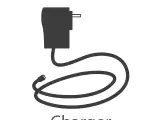
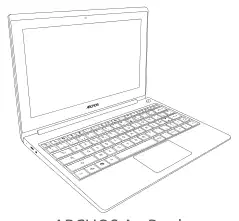
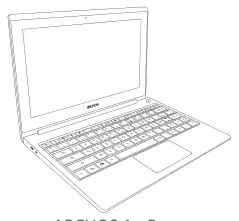
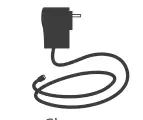
Warranty Warranty · ARCHOS ArcBook · USB cable Charger

Charging Connect the supplied power cable to the ARCHOS and to a wall outlet. The ARCHOS device will turn on and start charging. The charging indicator light is red while the battery is charging. It will turn blue when the battery is fully charged.


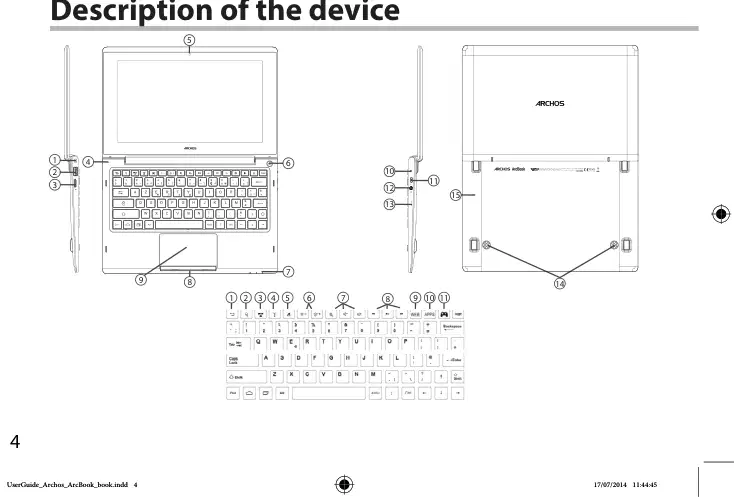
1 2 3 4 5 6 7 8 9 10 11


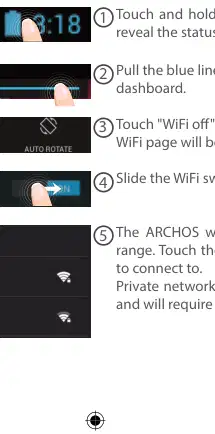
Touch and hold the time & battery icons to reveal the status bar. A blue line is displayed.
Pull the blue line down to display the status dashboard.
Touch "WiFi off" in the status dashboard. The WiFi page will be displayed.
Slide the WiFi switch to "ON" positon.
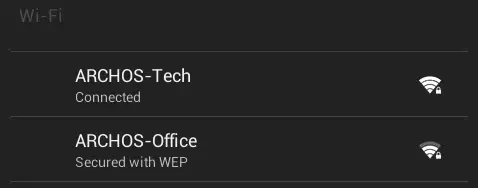
The ARCHOS will scan for Wifi networks in range. Touch the name of network you want to connect to. Private networks are shown with a lock icon and will require you to enter your password.

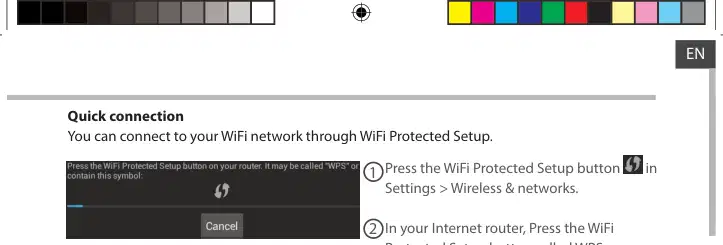
Quick connection You can connect to your WiFi network through WiFi Protected Setup.
2 In your Internet router, Press the WiFi Protected Setup button called WPS or containing the symbol
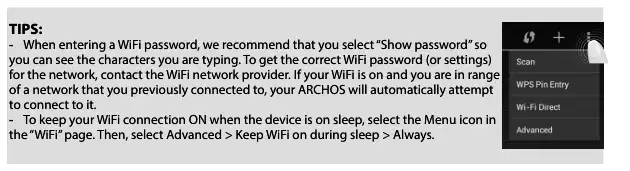
-- When entering a WiFi password, we recommend that you select “Show password” so you can see the characters you are typing. To get the correct WiFi password (or settings) for the network, contact the WiFi network provider. If your WiFi is on and you are in range of a network that you previously connected to, your ARCHOS will automatically attempt to connect to it.
-- To keep your WiFi connection ON when the device is on sleep, select the Menu icon in the “WiFi” page. Then, select Advanced > Keep WiFi on during sleep > Always.

TM Interface
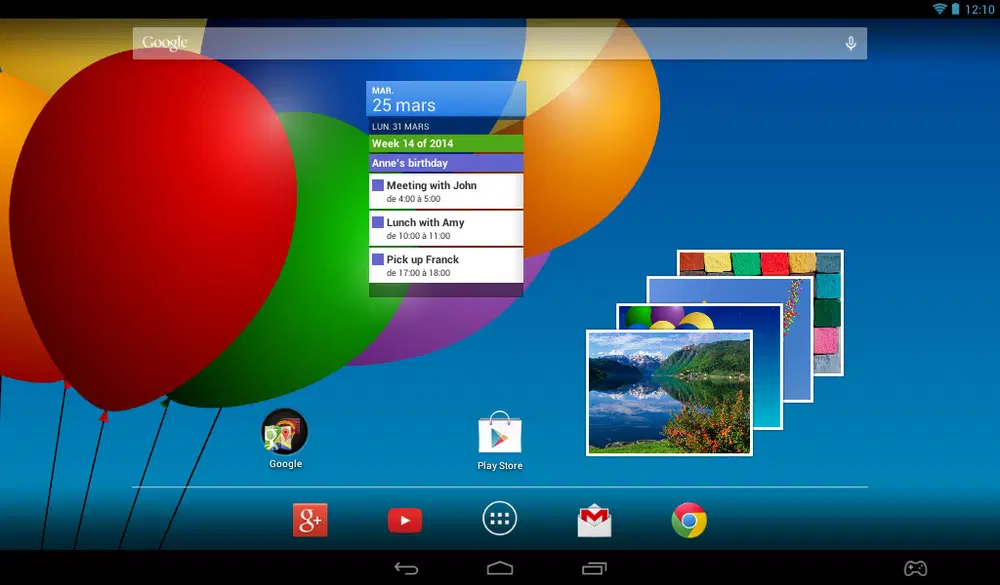
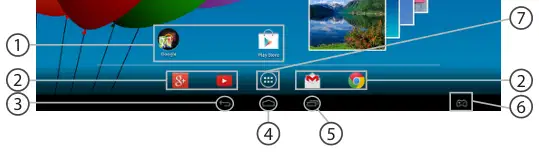

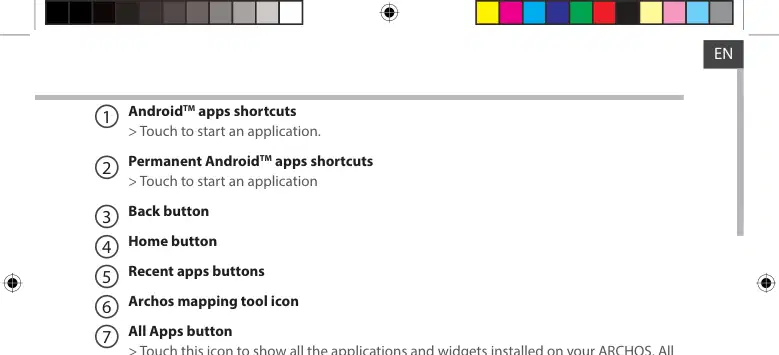
AndroidTM apps shortcuts > Touch to start an application.
Permanent AndroidTM apps shortcuts > Touch to start an application
All Apps button > Touch this icon to show all the applications and widgets installed on your ARCHOS. All your downloaded applications are here.
GoogleTM Search >Touch “Google” for text search or touch the microphone icon for voice search.
The status bar > Displays notifications and quick settings

TM Interface
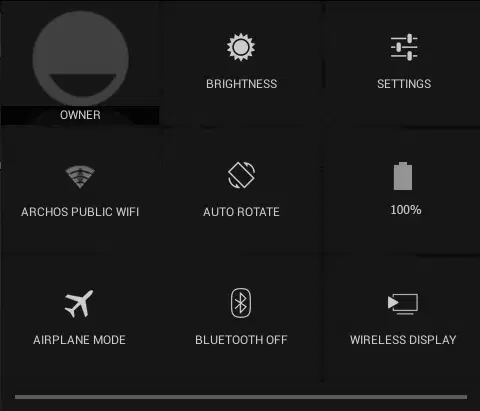
1 Current user(1)
2 To adjust the screen brightness.
3 To access all your settings.
4 To turn on/off your WiFi connection.
5 To activate/deactivate automatic screen orientation as you turn your ARCHOS.
6 Percentage of battery remaining
7 To activate/deactivate all wireless connections, especially when flying.
8 To enable wireless display(2)
(1)New multi-user support for tablets lets different users have their own separate, customizable spaces on a single device. Add users in Settings > Device. (2)You can share movies, YouTube videos, and anything that’s on your screen on an HDTV. You need to connect a wireless display adapter to any HDMI-enabled TV to mirror what’s on your screen quickly and easily.
The Quick settings

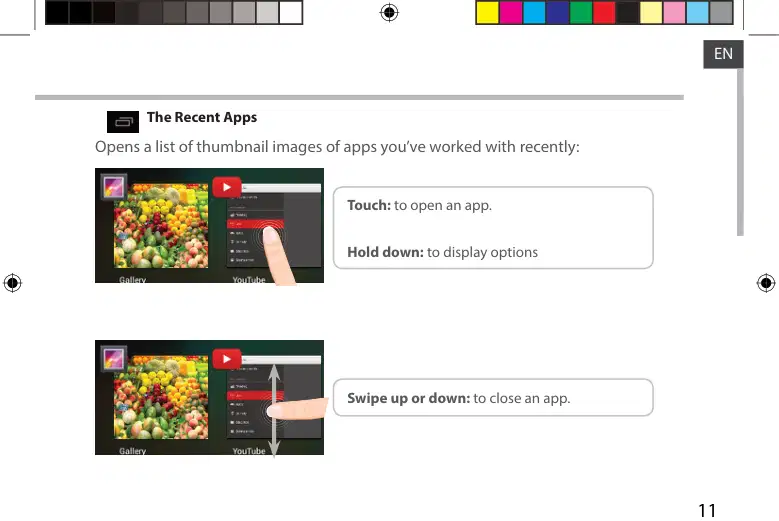
Opens a list of thumbnail images of apps you’ve worked with recently:

ARCHOS mapping tool is an application installed in your ArcBook. It allows you to link the virtual controls of games to the physical controls of the ArcBook by using mapping controls.
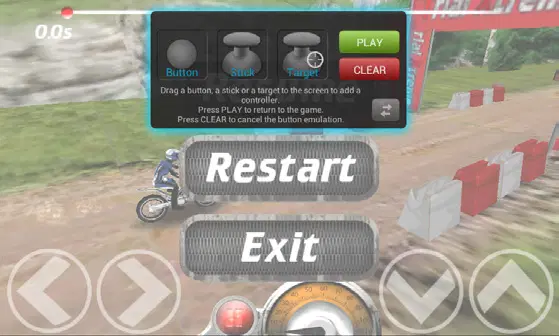


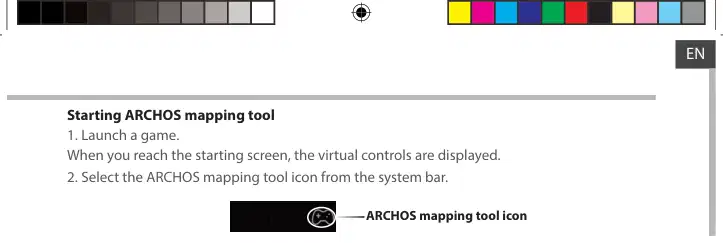
Starting ARCHOS mapping tool 1. Launch a game. When you reach the starting screen, the virtual controls are displayed. 2. Select the ARCHOS mapping tool icon from the system bar.
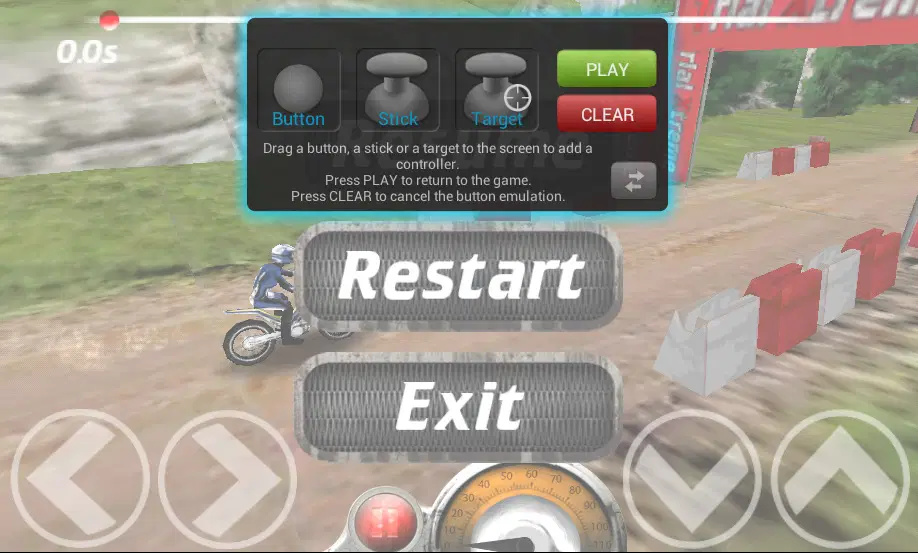
The mapping overlay is displayed with the mapping tool interface.
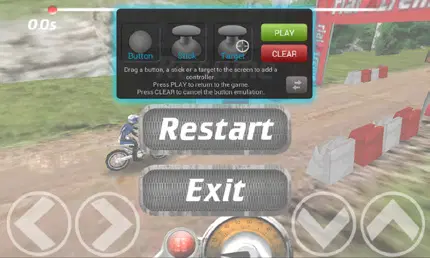
ARCHOS mapping tool interface
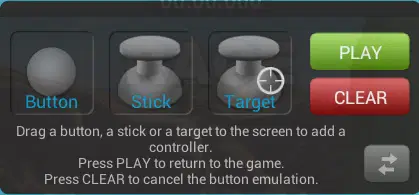

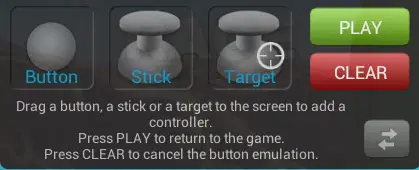
Positioning a mapping control Hold and drag a type of mapping control to the desired virtual button.
There are three types of mapping control
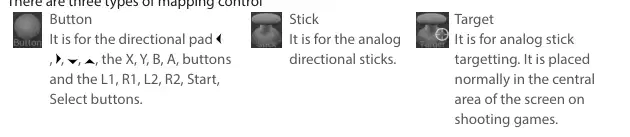
Button It is for the directional pad , the X, Y, B, A, buttons and the L1, R1, L2, R2, Start, Select buttons.
Target It is for analog stick targetting. It is placed normally in the central area of the screen on shooting games.

Linking a mapping control to a physical control 1. When a mapping control is placed on a virtual control, you are asked to select the desired physical control you want to associate with it.
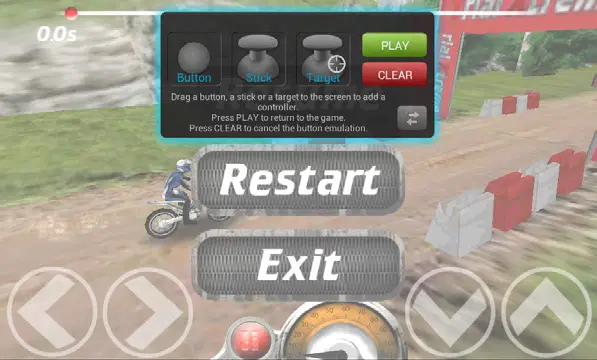
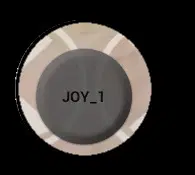

Enlarging a mapping control Some virtual controls are larger than the mapping controls. Enlarge the mapping control so that it is tailored to the virtual control. 1. Resize with right analog stick. 2. Press button A when done You can only enlarge the mapping controls Stick and Target.
Saving your parameters When you have mapped the virtual controls of a game, select "Play"
to validate . The profile is saved and associated with that game. The mapping overlay disappears and you can play. Whenever you start the game, you are informed that the emulation of virtual controls is running. Each mapping is specific to a game. Press the notification to display the mapping profile of the game. You can either modify it, or delete it.

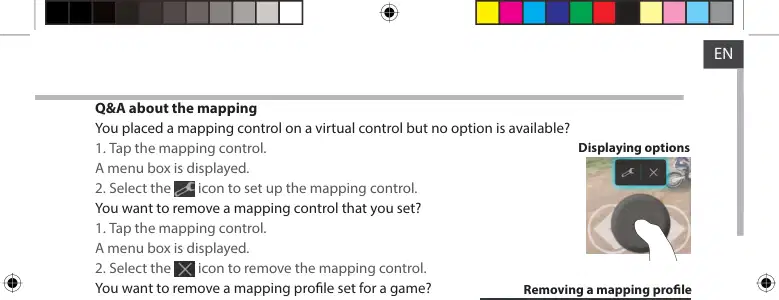
Q&A about the mapping You placed a mapping control on a virtual control but no option is available? 1. Tap the mapping control. A menu box is displayed. 2. Select the
icon to set up the mapping control. You want to remove a mapping control that you set? 1. Tap the mapping control. A menu box is displayed. 2. Select the
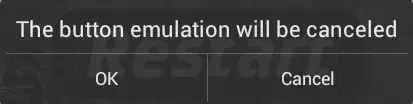
icon to remove the mapping control. You want to remove a mapping profile set for a game? 1. In the interface of the Game, select the mapping tool icon. 2. From ARCHOS mapping tool, select "Clear". 3. Select "OK" to confirm.

You can use your device as a regular computer with the keyboard and touch panel or you can interact with touchscreen. Using the Touch Panel: To do a short press: tap the Touch Panel once. To do a long press: hold the Touch Panel button The extended home screen: Finger: Navigate between different home screen panels by swiping left and right. Touch Panel: Hold the Touch Panel button while moving the cursor with the Touch Panel Moving a home screen item: Finger: Touch and hold your finger onto it until the positioning gridlines appear, then slide it to the desired location, and release your finger. Touch panel: Select the item with the cursor and hold the Touch Panel button. While holding the Touch Panel button, use the Touch Panel to move the item. Removing a home screen item: Finger: Touch and hold it, slide your finger towards the top of the screen and drop it over the "Remove" icon. Touch panel: Select the item with the cursor and hold the Touch Panel button. While holding the Touch Panel button, use the Touch Panel to move it towards the top of the screen and drop it over the Remove icon . Uninstalling an item: Finger: From the "All apps" screens, touch and hold it, slide your finger towards the top of the screen and drop it over "Uninstall" bin.

Touch panel: From the “All apps” screens, select the item with the cursor and hold the Touch Panel button. While holding the Touch Panel button, use the Touch Panel to move it towards the top of the screen and drop it over the Bin icon. Creating application folders: Drop one app icon over another on a home screen and the two icons will be combined. Widgets: Touch the "All Apps" icon on your home screen. Touch "Widgets" at the top of the screen. From the main Widget screen, you can move around widgets just as you do for app icons. Changing your wallpaper: Finger: Hold your finger on a home screen at an empty location, then choose from the list. Touch panel: On an empty space of the homescreen, hold the Touch Panel button. Locking the touchscreen: From the quick settings dashboard in the status bar, touch "Settings". In "Settings", scroll down and touch "Security". Touch "Screen lock". Touch the type of lock you would like to use. After you set a lock, a lock screen is displayed whenever your screen wakes up, requesting the pattern, pin or other specified key.
Opening ARCHOS Music app Long press on the Play/Pause shortcut button on the keyboard.

If your device is frozen: Press the ON/OFF button for 10 seconds or use the reset button. To use the reset button, press the “pinhole reset” button by using a sharp object such as a toothpick. If your device doesn’t turn on: 1. Charge your device. 2. Press the ON/OFF button for 10 seconds or use the reset button. To use the reset button, press the “pinhole reset” button by using a sharp object such as a toothpick. If you want to extend the life of your battery: Decrease the screen brightness and turn off the wireless connections if not in use. If your device functioning is too slow: Close all apps which are not currently used. If your WiFi reception is too low: Make sure you are not far from the WiFi hotspot. Update the firmware of the device: http://www.archos.com/support Reset and redefine your connection parameters. Contact your WiFi connection provider. If you want to restore your product (forgotten password? erase all your settings?) : 1. Insert a paper clip in the Restore button. 2. While holding the paper clip, connect the plugged power cable to the ARCHOS. The device turns on. The Android system recovery is displayed.

Guide des garanties et
Pagina's waarnaar wordt verwezen in deze handleiding — fabrikant, ondersteuning en downloads.
Eigenaren en ons team reageren doorgaans binnen een dag — en uw vraag helpt ook de volgende persoon.
Stel als eerste een vraag — andere eigenaren of ons team geven antwoord.